.png?width=200&height=50&name=cydarm%202024%20logo%20blue%20on%20transparent%201000x250%20(3).png)
Cydarm can be configured to add tags to a case based on the case description. This can be useful to automatically classify cases with structured case descriptions such as alerts. It can also be useful when used in conjunction with automating playbook addition via tag.
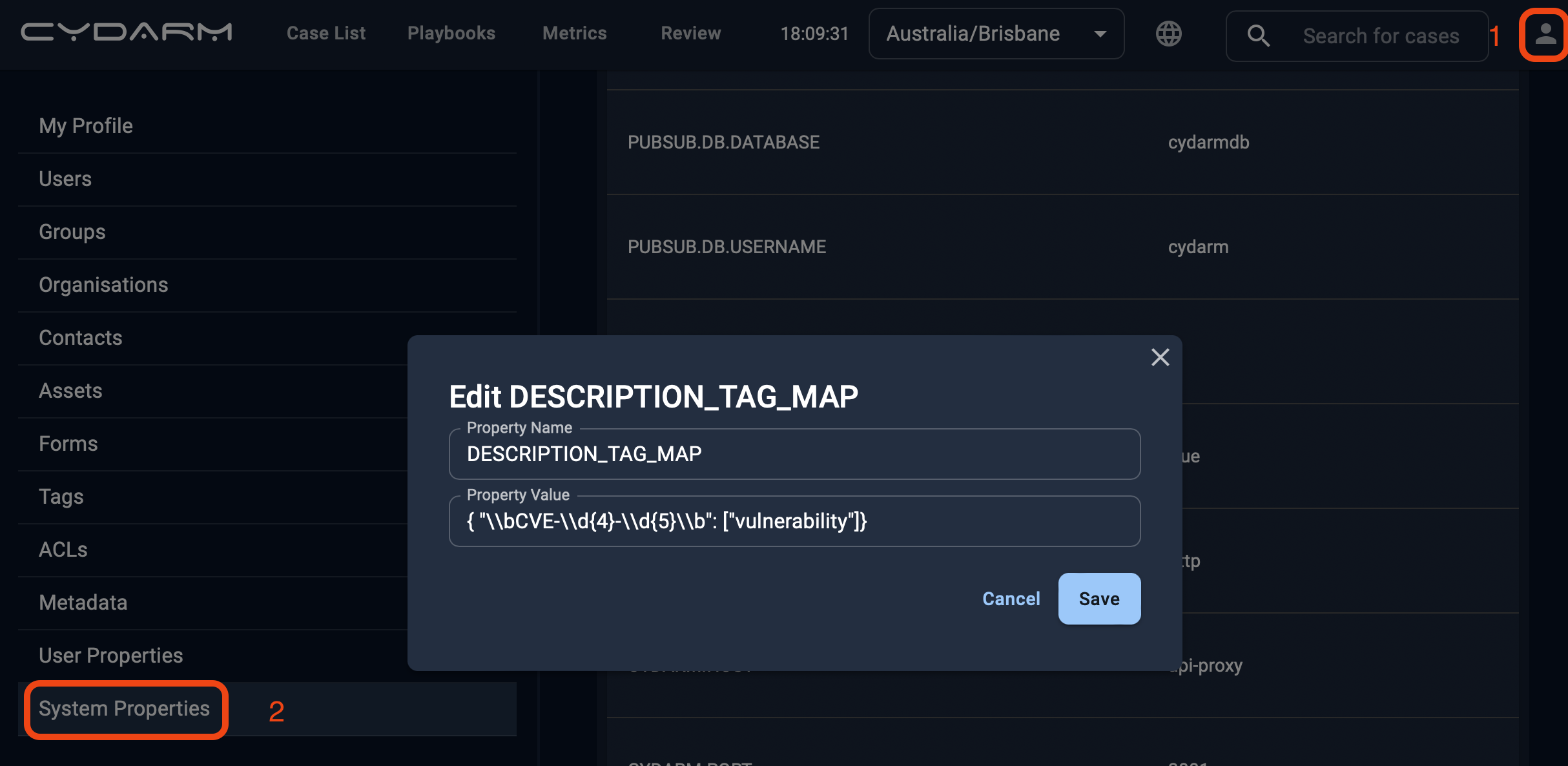
This configuration is set in system properties, as a property named DESCRIPTION_TAG_MAP. This is only editable by users with the administrator role group. The value of the property is a JSON dictionary that maps case sensitive regular expressions to tags. For example:
{
  "phishing":
    [
      "mitre-attack:t1192-spearphishing_link",
      "mitre-attack:t1193-spearphishing_attachment"
    ],
  "\\bCVE-\\d{4}-\\d{5}\\b":
    [
      "vulnerability"
    ]
}
The setting above indicates that when the word phishing appears in the case description of a newly created case, the tags mitre-attack:t1192-spearphishing_link and mitre-attack:t1193-spearphishing_attachment should be added to the case. Also, if the description contains a CVE ID, by matching the regular expression "\bCVE-\d{4}-\d{5}\b", then the tag vulnerability is added.
The regular expression pattern provided in the key must be JSON safe - you will need to escape the backslash in meta-characters.
All matching mappings will be applied. In the example above, if a case had a description of CVE-2021-40444 MSHTML vulnerability used in phishing campaigns, then all three tags would be applied.
The empty string ""can be used to map a tag to all cases.
Errors in definition file will prevent automatic tagging from working. The most common errors that may occur are:
- improperly structured JSON, or
- unescaped regular expressions which leads to non-JSON safe definitions
Any changes to this property should be followed with testing to ensure case tagging functions as expected. The property value must be a valid JSON string.
Adding an automatic tag
- As an Administrative user, go to Settings
- Go to System Properties
- Add a new tag (or edit if it already exists)
- Ensure property name is
DESCRIPTION_TAG_MAP - Enter valid JSON as per the structure above, ensuring that backslash characters in regular expressions are escaped - eg
\dshould be entered as\\d - Click Save
- Test new case creation to confirm
- Create a new case with a random, non-matching description, and confirm that case can be created successfully. Check that tags are not applied. If case creation fails, check the value entered is valid JSON and backslash characters have been appropriately escaped.
- Create a new case that contains a description that matches. Check that expected tags are applied.