---
title: Create or deactivate SSO user accounts
description: This article explains how to create a new user account when using Single Sign On (SSO)
---
[Skip to content](https://support.cydarm.com/en/knowledge/create-a-new-sso-user-account#main-content)
English
Show submenu for translations
[More support](https://support.cydarm.com/en/knowledge/kb-tickets/new?hsLang=en) [Customer portal](https://support.cydarm.com/tickets-view?hsLang=en)
.png?width=200&height=50&name=cydarm%202024%20logo%20blue%20on%20transparent%201000x250%20(3).png)
Open main navigation
Close main navigation
- English
Show submenu for translations
- [More support](https://support.cydarm.com/en/knowledge/kb-tickets/new)
- [Customer portal](https://support.cydarm.com/tickets-view)
- Contact us
Contact us
How can we help you?
- There are no suggestions because the search field is empty.
1. [Knowledge Base](https://support.cydarm.com/en/knowledge?hsLang=en)
2. [Cydarm Administration](https://support.cydarm.com/en/knowledge/cydarm-administration?hsLang=en)
3. [Application Administration](https://support.cydarm.com/en/knowledge/cydarm-administration?hsLang=en#application-administration)
# Create or deactivate SSO user accounts
## This article explains how to create a new user account when using Single Sign On (SSO)
### Overview
To provision access for a new SSO user, an account needs to be created in Cydarm, as currently we do not support SCIM or other similar auto-provisioning systems. For creating local accounts, see [Create a new user account](https://support.cydarm.com/en/knowledge/create-a-new-user-account?hsLang=en).
### Pre-requisites
You must have a user that is a member of the *user manager* group. (Note: an administrative user needs to be specifically added to the **user manager** group, which is something they can do themselves).
### To create a new user
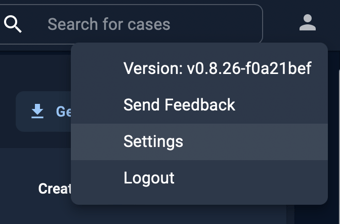
1. Go to **Settings.**
2. Go to **Users** and click on **Create User.**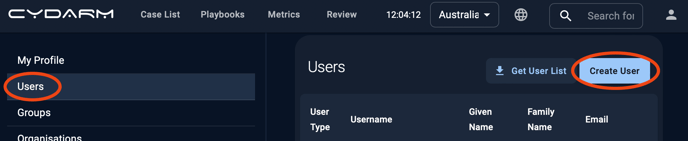
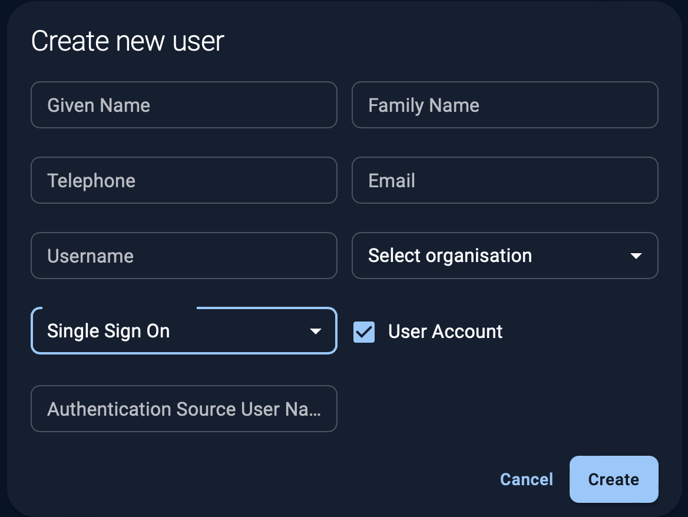
3. Fill out the details:
1. Telephone and email are optional, but email is recommended.
2. We recommend using email address for username, although this is not mandatory.
3. Select the default organisation to associate the user.
4. For **Select authentication source** choose **Single Sign On**
5. For **Authentication Source User Name**, this needs to be the Entity ID of the account. For many Identity Providers (IdP) this will be the email address, however for some systems (such as Okta) this may be a UUID.
6. *Note - **Authentication Source User Name** is case sensitive.*
7. Ensure that **User Account** is ticked. If **User Account** is not ticked, then the account will not be able to have cases or playbook actions assigned to it.
8. If you want to create an account for automation purposes, see the section below and create an Internal account.
### Configuring group membership for new accounts
Once a new user account has been created, it will be able to log into Cydarm, however it will not be able to view or update cases. This is because by default new user accounts are only created with login permissions - permission to view or update need to be specifically granted.
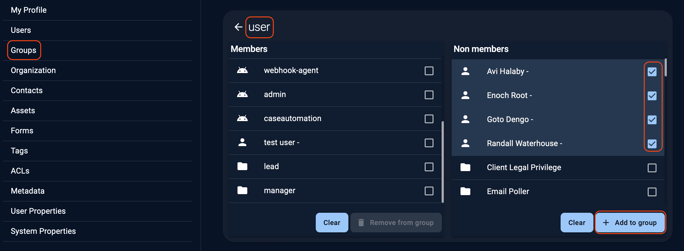
For analyst users, who will be able to create, view and update cases, add them to the 'user' group. For more information on roles, see [Role Based Access Control](https://support.cydarm.com/en/knowledge/role-based-access-control?hsLang=en).
Groups can be added to a user from their user page:
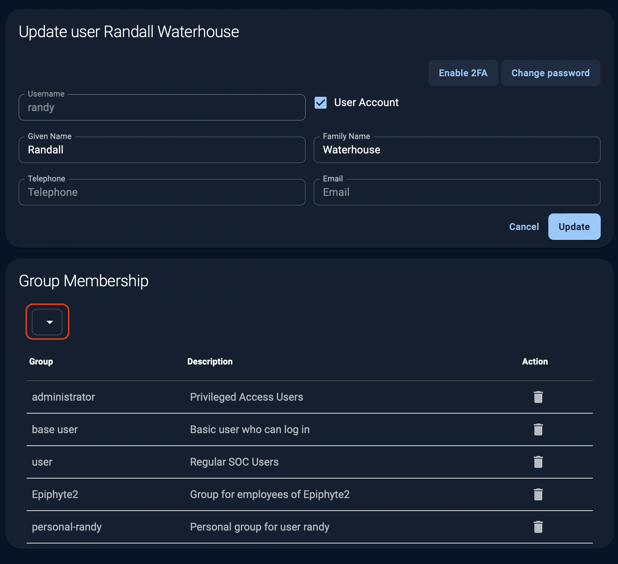
Or you can visit the group page to add multiple users:
### Automation accounts - internal accounts
If you use SSO and would like to set up accounts for automation (eg accounts to interact with the API to create /modify cases or extract reporting information), please set these up as *internal accounts.* This is due to the way API authenticates currently - an *internal account* is required to perform authentication and get the auth token. See [Create a new user account](https://support.cydarm.com/en/knowledge/create-a-new-user-account?hsLang=en) for instructions.
Also - don't forget to update group membership configurations to gain the necessary permissions to query data from the API. For instance add your automation user to the **user** group to create/update cases or to the **risk** or **comms** group for read only permissions.
### To deactivate/reactivate a user
In the instance that you may want to remove or make changes to a user account, it is important to note that Cydarm accounts are never deleted, but rather deactivated, and that the deactivated accounts can be viewed and reactivated if required.
To deactivate or reactivate an account:
1\. Go to **Settings**.

2\. Click on the bin icon next to the user you are wanting to deactivate.

3\. The user will be moved to the deactivated user list located at the bottom of the **Users** screen.
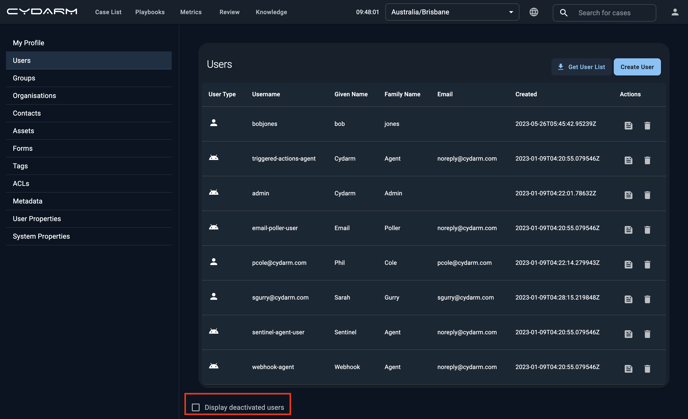
4\. To reactivate the user, click on the **Display deactivated users** checklist you find the user name and click on the reactivate arrow on the right side of the user.
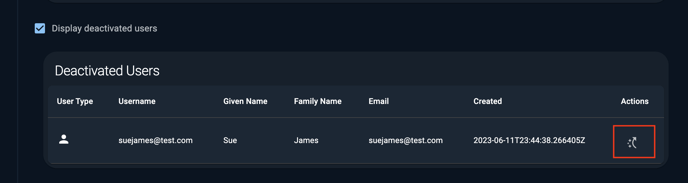
5\. The deactivated user will now appear in the **Users** list of names
### Related articles
[API Examples](https://support-staging.cydarm.com/en/knowledge/api-examples?hsLang=en)
[Cydarm API documentation](https://support.cydarm.com/en/knowledge/api-documentation?hsLang=en)
- [General](https://support.cydarm.com/en/knowledge/general?hsLang=en#main-content)
- [User Guides](https://support.cydarm.com/en/knowledge/general?hsLang=en#user-guides)
- [Updates & Release Notes](https://support.cydarm.com/en/knowledge/general?hsLang=en#updates-release-notes)
- [Playbooks](https://support.cydarm.com/en/knowledge/general?hsLang=en#playbooks)
- [Cydarm Administration](https://support.cydarm.com/en/knowledge/cydarm-administration?hsLang=en#main-content)
- [Authentication](https://support.cydarm.com/en/knowledge/cydarm-administration?hsLang=en#authentication)
- [Application Administration](https://support.cydarm.com/en/knowledge/cydarm-administration?hsLang=en#application-administration)
- [Integrations](https://support.cydarm.com/en/knowledge/cydarm-administration?hsLang=en#integrations)
- [API](https://support.cydarm.com/en/knowledge/cydarm-administration?hsLang=en#api)
[.png?width=200&height=50&name=cydarm%202024%20logo%20blue%20on%20transparent%201000x250%20(3).png "Cydarm Logo")](http://cydarm.com)
[mailto:email@email.com](mailto:email@email.com)
Copyright © 2026, Cydarm Technologies